Get Duka POS for Windows
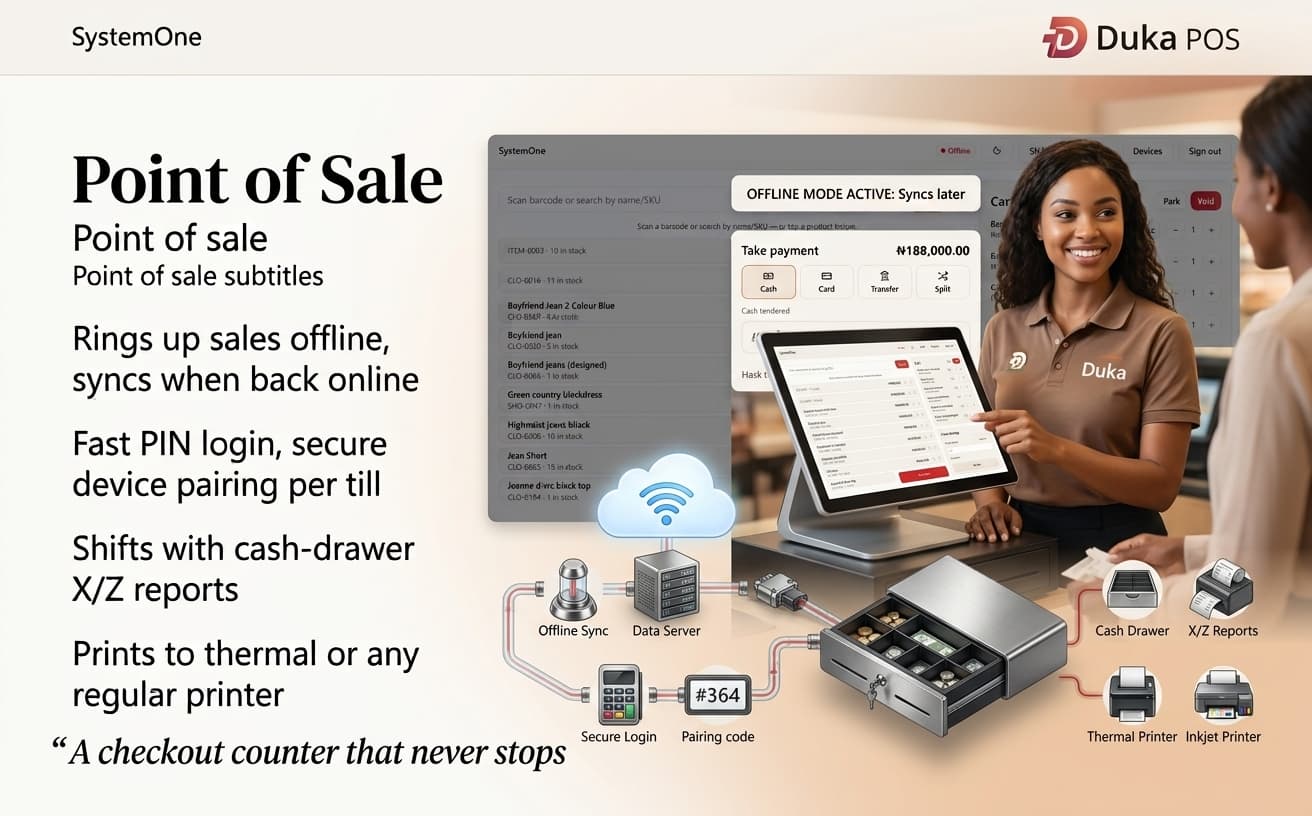
The offline-ready point of sale for your counter. Free with any plan, and it updates itself so you install it once.
Duka-POS-Setup.exe · Windows 10/11 · 64-bit
What you need
Nothing exotic. If you have a Windows till and a Duka store, you're ready.
Windows 10 or 11
A 64-bit Windows PC or laptop at the till. That's the only machine you need.
A Duka account
Create your store first, then generate a pairing code from the Admin Dashboard.
A printer (optional)
A thermal receipt printer, or any regular printer already on the till. No dedicated hardware needed.
Internet for setup
Needed to pair and to sync. After that, selling works offline and catches up automatically.
From download to first sale
Six steps, a few minutes. You only do the install and pairing once per till.
- 01
Install the app
Run Duka-POS-Setup.exe and follow the prompts. The app installs for the current user and opens when it's done.
- No admin rights on the machine are usually required.
- The app updates itself in the background, so you install it once.
- 02
Create a pairing code in the dashboard
In the Admin Dashboard, open POS devices and generate a pairing code for this till.
- You'll need an owner or manager account with access to POS devices.
- Each till pairs once and stays paired to your business.
- 03
Pair the terminal
On the POS, give the terminal a name like “Front counter” and enter the pairing code. The device is now bound securely to your store.
- Pairing codes look like A1B2C3D4 and are single-use per device.
- 04
Staff sign in with a PIN
Each staff member signs in with their staff code and PIN, separate from the admin login, so the counter stays fast.
- Set up staff and their codes under Staff in the Admin Dashboard.
- 05
Open a shift and start selling
Open a shift with the cash-drawer opening float, then ring up sales. Everything works offline and syncs when you reconnect.
- Use manual price overrides and rounding for walk-in and cash sales.
- Refunds run right at the counter with full line-item detail.
- 06
Print receipts and close the shift
Print to a thermal receipt printer or any regular printer on the till. At end of day, close the shift and take the X/Z report to reconcile the drawer.
Download & setup FAQ
The quick answers before you install.
Don't have a store yet?
Create your Duka store on the free trial, then come back and pair your first till.